ZTE
ZTE CPE
ZTE CPE (Customer Premises Equipment) is a wireless gateway that converts 4G LTE / 5G cellular signal into Wi‑Fi and wired Ethernet network for home, office and small business use.
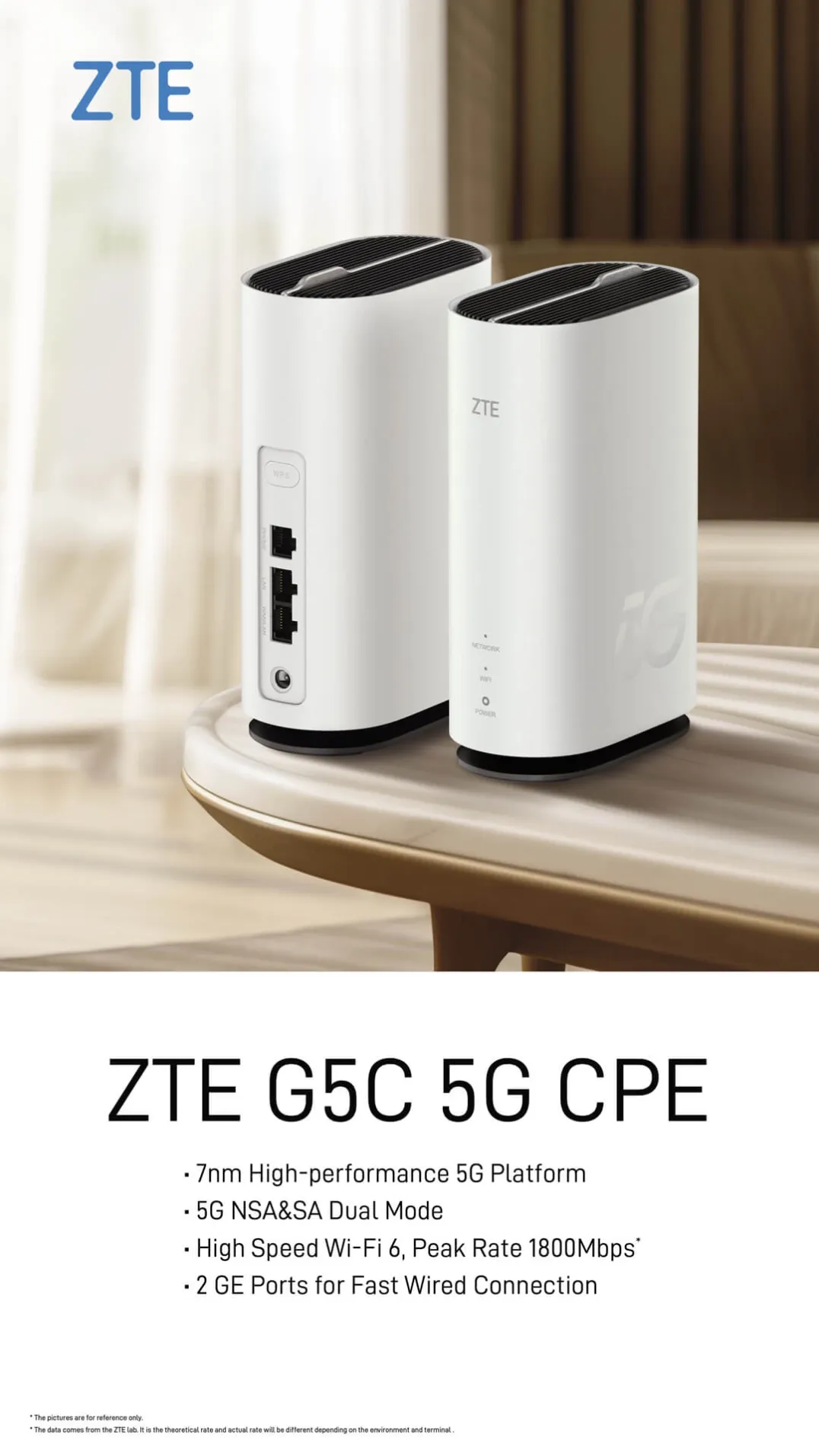
ZTE CPE (Customer Premises Equipment) is a wireless gateway that converts 4G LTE / 5G cellular signal into Wi‑Fi and wired Ethernet network for home, office and small business use. It supports SA & NSA 5G, plug‑and‑play access, multi‑device Wi‑Fi sharing, wired LAN output, external antenna ports, bridge mode, WPS, port forwarding, IPv4/IPv6 and remote management (TR‑069). It works with standard nano‑SIM cards from mobile operators worldwide.
1. Preparation
- Valid nano‑SIM card with activated data plan (VoLTE supported on selected models)
- Power adapter
- RJ45 Ethernet cable (for wired connection)
- Check the bottom label for default SSID, Wi‑Fi key, web management IP and admin passwordoss.ztedev...
2. Basic Installation & Power‑on
- Power off the device, insert nano‑SIM card correctly into the SIM slot, then close the cover.
- Connect the power adapter to DC port and mains supply.
- Wait about 1–2 minutes for boot‑up. Check indicator lights: steady power light means powered normally; network light shows cellular registration status.
Note: Outdoor CPE models use PoE power supply.
3. Access Internet
Option A: Wi‑Fi connection
Search the default SSID printed on the label on your phone/laptop, enter the Wi‑Fi password, then go online directly.
Option B: Wired LAN connection
Connect PC, switch or secondary router to the LAN port with RJ45 cable. The device assigns IP automatically via DHCP.
Option C: WPS quick pairing
- Press the WPS button on CPE, Wi‑Fi LED blinks.
- Enable WPS on your terminal (phone/laptop).
- Complete pairing within 2 minutes without entering Wi‑Fi password.
4. Web Management Login
- Connect PC to CPE via Wi‑Fi or LAN cable.
- Open browser and visit the default gateway (common:
192.168.1.1/192.168.254.1/172.16.1.1, check device label).
- Input default admin username & password.
- Main configurable items:
- Cellular network: APN, band lock, SA/NSA switch, network priority
- WLAN: Modify SSID, Wi‑Fi password, 2.4G/5G split, Wi‑Fi channel
- Advanced: Bridge mode, DMZ, port forwarding, firewall, MAC filter, SMS, data usage statistics
- System: Firmware FOTA upgrade, time setting, reset, log check
5. Factory Reset
Press and hold the RESET pinhole button for about 3 seconds until indicators flash. All custom settings will be cleared and restored to factory defaults.
6. Indicator Reference (General)
- POWER: Solid = Normal power; Off = No power / Fault
- NET / SIGNAL: Solid = Registered to cellular network; Blink = Data transmitting; Off = No SIM / No signal
- WIFI: Solid = Wi‑Fi enabled, idle; Blink = Wi‑Fi data / WPS active
7. Common Troubleshooting
- No internet: Confirm SIM is valid, APN matches carrier, check signal strength, reboot CPE.
- Poor speed: Install external antennas, adjust position to face base station, switch 5G/LTE band, reduce connected devices.
- Cannot log in web page: Confirm PC obtains DHCP IP, disable proxy/VPN, clear browser cache.
- Forgot Wi‑Fi / admin password: Perform factory reset.
8. Safety Notice
- Use original ZTE power adapter only.
- Keep indoor CPE away from high temperature, moisture and direct sunlight.
- Do not use non‑standard SIM adapter to avoid damaging SIM slot.
- For outdoor CPE, professional installation and lightning protection are recommended.